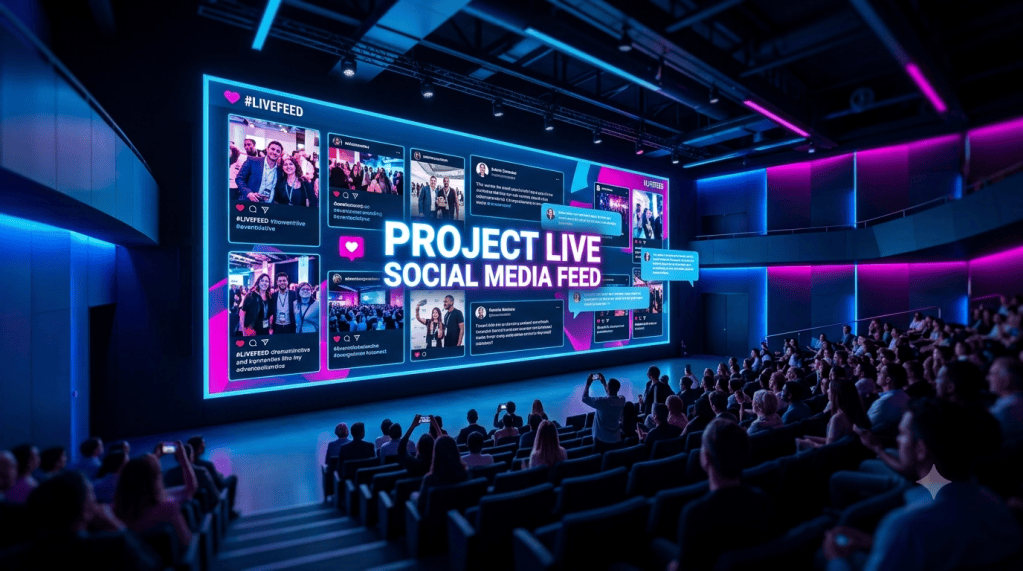
Whether you’re running a corporate event, a retail store, a college fest, or a live conference, knowing how to project live social media feed on screen has become one of the most powerful ways to engage your audience in real time. People love seeing their posts, mentions, and hashtags appear on a big display — it creates a sense of participation that no pre-planned slide deck can match.
This guide walks you through everything you need to know to successfully display live social feeds on your screens.
Why Show a Live Social Media Feed on Screen?
Before diving into the how, it’s worth understanding the why. When you show social media feeds on screen at an event or a public space, you create a live, dynamic content loop that keeps your audience hooked. It encourages attendees to post using your event hashtag, boosts your organic reach, and builds a buzzing digital community around your brand — all in real time.
From retail stores and restaurants to trade shows and wedding receptions, putting a social media wall digital signage display in place has become a go-to strategy for businesses and event organizers who want to make their space feel alive and interactive.
What You Need to Get Started
To display social media feed on screen, you’ll need a few core components:
- A screen or display — This could be a TV, LED wall, projector screen, or digital signage panel.
- A social media aggregator tool — Software that pulls posts from platforms like Instagram, X (Twitter), Facebook, LinkedIn, TikTok, and others.
- A stable internet connection — Live feeds depend on real-time data pulling.
- A media player or laptop — To run the aggregator and push content to the screen.
Once you have these in place, the setup is more straightforward than most people expect.
Step-by-Step: How to Display Social Media Feeds on Screen
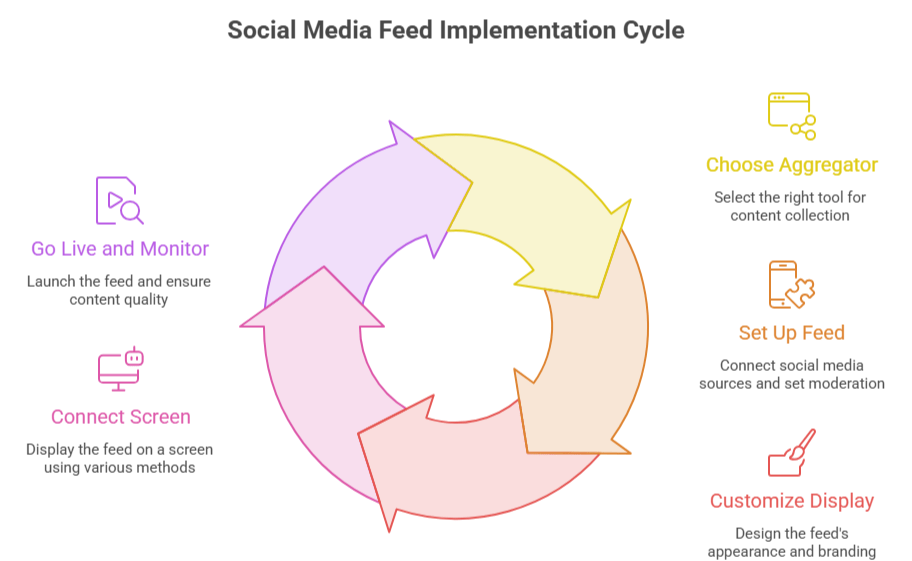
Step 1: Choose Your Social Media Aggregator
The most important decision is picking the right tool. A social media aggregator collects posts from multiple platforms based on hashtags, handles, mentions, or keywords, and presents them in a visually appealing feed format.
One widely used platform in this space is Social Walls by Taggbox, which allows you to aggregate content from 20+ social platforms, moderate posts, customize the layout, and embed or display the feed on screens. It’s used across industries for events, digital signage, websites, and more.
When choosing a tool, look for features like real-time updates, content moderation, customizable themes, and support for multiple platforms.
Step 2: Set Up Your Feed
Once you’ve chosen your aggregator, create a new feed by connecting the social media source. You can:
- Pull posts by hashtag (e.g., #YourEventName)
- Pull from a specific social media handle or page
- Aggregate mentions of your brand
- Combine multiple sources into a single unified feed
Set your moderation preferences — manual moderation lets you approve posts before they go live on screen, which is essential for public-facing events.
Step 3: Customize the Display
Most aggregator tools let you customize how the social media feed on a screen appears. You can choose from grid layouts, carousels, tickers, or mosaic styles. Match the colors, fonts, and branding to your event or space. A well-designed display looks professional and keeps viewers engaged longer.
Step 4: Connect to Your Screen
This is where you put social media feed on screen in its most literal sense. Depending on the tool and your setup, you can:
- Use a direct URL — Most aggregators generate a unique display URL that you open in a browser on your connected device and cast or mirror to the screen.
- Use HDMI output — Connect your laptop to the screen via HDMI and go full screen on the browser displaying your feed.
- Use a media player — Devices like a Chromecast, Amazon Fire Stick, or dedicated digital signage players can run the feed independently without a laptop.
- Embed on a webpage — If your screen runs a web-based signage system, embed the feed’s iframe directly.
Step 5: Go Live and Monitor
Once your feed is running, monitor it throughout the event. Watch for spam or inappropriate content slipping through (if you’re using auto-moderation) and keep an eye on the display to ensure the feed is refreshing properly.
Tips to Make Your Social Feed Display More Effective
Use a clear, memorable hashtag. If you want people to contribute content, make it easy. Display the hashtag prominently on the screen alongside the feed so attendees know exactly what to post.
Announce it to your audience. Don’t assume people will notice the screen. Tell attendees at the start that they can show social media feed on screen by posting with the event hashtag — you’ll see participation spike immediately.
Rotate content regularly. If your feed isn’t getting a constant stream of new posts, set the display to rotate older posts so the screen doesn’t feel stagnant.
Position screens strategically. Place displays at high-traffic spots — entrances, near the stage, in break areas, or at dining tables. The more visible the screen, the more people will interact with it.
Use moderation wisely. For brand-sensitive events, always pre-approve posts. For casual community events, auto-moderation with keyword filters works well and keeps the feed moving in real time.
Common Use Cases for Displaying Social Media Feeds on Screen
- Corporate events and conferences — Encourage attendees to share insights and photos; display social media feeds on screen to build energy and highlight audience participation.
- Retail stores — Show customer reviews and UGC posts to build trust and inspire purchases.
- Restaurants and cafes — Display tagged photos from happy customers to create social proof.
- Colleges and universities — Aggregate student posts during fests, orientations, and sports events.
- Weddings and private events — Collect posts from guests and display them live as a personalized memory wall.
- TV studios and newsrooms — Pull real-time social reactions and viewer comments to broadcast alongside programming.
Final Thoughts
Learning how to project live social media feed on screen is not a technical challenge reserved for IT teams anymore. With the right aggregator tool and a basic screen setup, anyone can build an engaging, real-time social display in under an hour.
The key is to plan your feed source, moderate thoughtfully, design a display that fits your environment, and make sure your audience knows how to participate. When done right, a live social media feed on screen transforms passive viewers into active contributors — and that kind of engagement is hard to replicate with any other medium.
Start small, experiment with layouts, and watch how quickly a live social feed changes the energy of any space.


Leave a Reply